Defensive Mode
Defensive Mode is a security feature that adds an extra layer of protection against spam bots and distributed denial of service (DDoS) attacks. Potential threats are detected and blocked before they reach a VIP Platform environment.
When enabled, Defensive Mode automatically engages when requests to an environment cause a configured threshold to be met. On WordPress environments the threshold is based on resource usage (busy PHP workers) and on Node.js environments the threshold is based on concurrency.
While Defensive Mode is engaged, suspicious visitors are presented with a challenge that must be passed before gaining access, while legitimate users are allowed to access a site without interruption. Suspicious visits return a 403 Forbidden HTTP status code.
Users can interact with available settings to modify the time frame and format of data that is displayed in the Traffic Analysis section of the Defensive Mode panel.
Limitations
Defensive Mode settings are per-environment. On a WordPress multisite environments, Defensive mode cannot be selectively enabled or configured per-network site.
Access
Prerequisites
- To access the Defensive Mode panel and view Traffic Analysis data a user must have an an Org role or an App role for that application.
- To enable, configure, or disable Defensive Mode a user must have an Org admin role or an App admin role for that application.
To access the Defensive Mode configuration panel:
- Navigate to the VIP Dashboard for an application.
- Select an environment from the environment dropdown located at the upper left of the VIP Dashboard.
- Select “Security Controls” from the sidebar navigation at the left of the screen.
- Select “Defensive Mode” from the navigation submenu.
Enable
In the upper area of the “Defensive Mode” panel, the box titled “Service Status” indicates if the Defensive Mode feature is currently “Awaiting configuration” or “Enabled” for the environment.

To enable Defensive Mode for a WordPress environment:
- Select the button labeled “Settings” in the Service Status box.
- In the section titled “Engagement Threshold”, select the percentage of busy PHP workers that will trigger Defensive Mode to engage.
- 95% – Near maximum resource usage
- 80% – High percentage of busy PHP workers (Default)
- 70% – Slightly high percentage of busy PHP workers
- 50% – Normal percentage of busy PHP workers
- In the section titled “Challenge Type”, select which type of challenge will be presented to suspicious requests.
- Non-interactive (default): The requester’s computer is required to complete the challenge in the background (e.g. a small computational task).
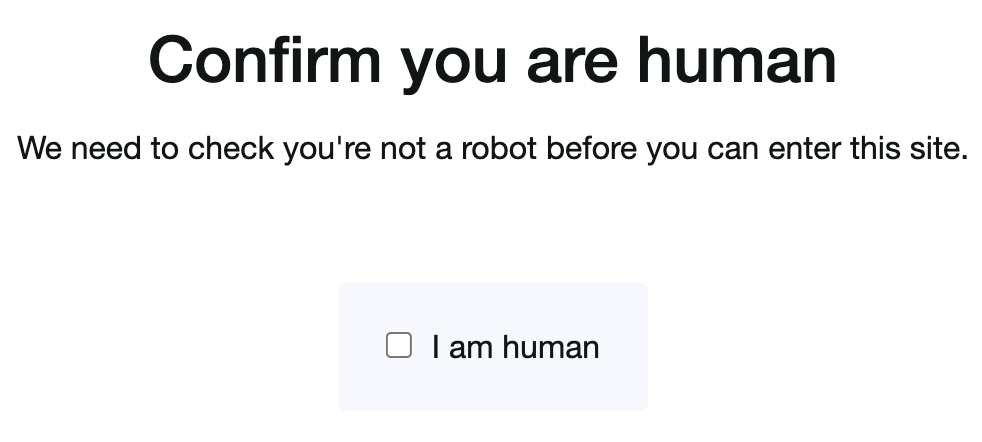
- Interactive (more effective at blocking bots): The requestor is required to interact directly with the challenge (e.g. checking a box).
- Select the checkbox in the section titled “Important Alerts” to automatically send Important Alerts when Defensive Mode engages.
- Select the button labeled “Save” to preserve and apply the updated settings.
- Select the button labeled “Enable” located in the “Service Status” box to enable Defensive Mode for the environment.
To enable Defensive Mode on a Node.js environment:
- Select the button labeled “Settings” in the Service Status box.
- In the section titled “Engagement Threshold”, enter an integer value between
1and1000for the number of concurrent requests that will trigger Defensive Mode to engage (default value:50). - In the section titled “Challenge Type”, select which type of challenge will be presented to suspicious requests.
- Non-interactive (default): The requester’s computer is required to complete the challenge in the background (e.g. a small computational task).
- Interactive (more effective at blocking bots): The requestor is required to interact directly with the challenge (e.g. checking a box).
- Select the checkbox in the section titled “Important Alerts” to automatically send Important Alerts when Defensive Mode engages.
- Select the button labeled “Save” to preserve and apply the updated settings.
- Select the button labeled “Enable” located in the “Service Status” box to enable Defensive Mode for the environment.
When Defensive Mode is successfully enabled, the Service Status badge will display as “Enabled” with a green indicator, and the status message will confirm that “Defensive Mode is currently protecting your site from malicious traffic.”
If legitimate users report being challenged or blocked while Defensive Mode is engaged, adjust the settings by increasing the engagement threshold and/or selecting the non-interactive Challenge type.
Disable
In the upper area of the “Defensive Mode” panel, the box titled “Service Status” indicates if the Defensive Mode feature is currently “Enabled” or “Disabled” for the environment.
To disable Defensive Mode:
- Select the button labeled “Disable” button in the Service Status box.
- Select the button labeled “Disable Defensive Mode” to confirm.

Traffic Analysis
The data displayed in “Traffic Analysis” provides insights over a selected time period for the frequency that Defensive Mode engages and its effectiveness.
The Data Series types available in the “Traffic Analysis” chart and table formats:
- Total Traffic: The total number of requests that were received
- Challenged Requests: The number of requests that were presented with the Defensive Mode challenge
- Passed Requests: The number of requests that successfully passed the Defensive Mode challenge
- Blocked Requests: The number of requests that were blocked by Defensive Mode
Data in “Traffic Analysis” can be displayed in either chart or table format, filtered by selected periods of time, exported as a csv file, and more.

Last updated: May 12, 2026