VIP Workflows (Beta)

VIP Workflows is an AI-native editorial planning and workflow tool for WordPress VIP. It lets you model your editorial process as a visual sequence, then enforces that process in the editor.
Sequences
A sequence is the configuration that defines a workflow: the stages a post, page, or custom post moves through and the transitions between stages. You can find sequences under Workflows → Sequences. Editing a sequence opens a visual, drag-and-drop graph: stages are cards, grouped into horizontal bands by status region, and transitions are the connecting lines drawn between them.
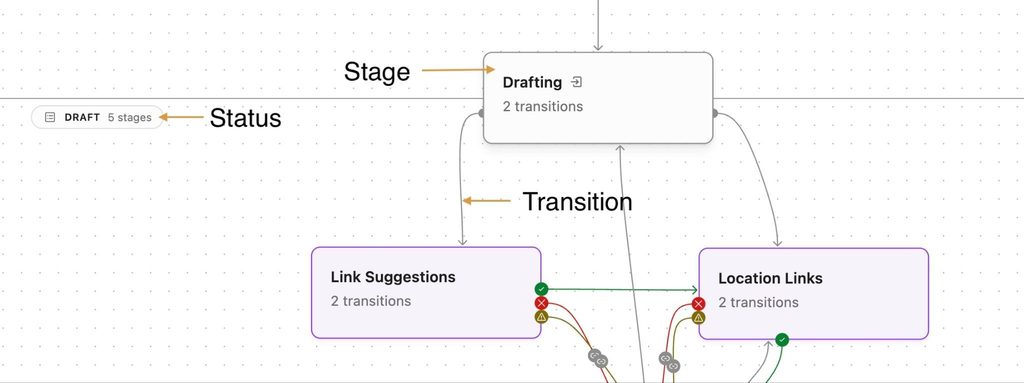
Each Sequence can be restricted to specific post types. You can set whether an agent can publish directly and add specific editorial metadata fields available for any post using the sequence.
MCP fully supports sequence building. If you have Secure MCP set up, you can describe the sequence you want and have WordPress build one for you. It is a great way to get started.
The sequence editor’s inspector panel lists a sequence’s stages and post statuses. You can manage them from the sidebar.
Selecting an item in either list also selects it on the canvas.
The Sequences screen includes a “How to author one as JSON” link alongside the MCP option above, explaining how to create or import a sequence through the REST API or the Abilities API without opening the graph editor.
Stages and status regions
A stage is a step on a path to done. Stages are different from WordPress’s four post statuses: draft, pending, private, or publish. Those statuses are represented as regions in the sequence editor.
To change a post status (from draft to published), make sure the target stage is in the correct region. This stage-and-region pairing is the core mechanic behind sequences: it lets an editorial team define as many fine-grained stages as it needs.
A stage’s panel sets its label and color, and — for an AI-owned stage — which agent runs there (see Agents).
Transitions
A transition between two stages can require specific tools to move forward, restrict who may trigger it by role, assign the post to a person or role (see Assignments), and notify a channel when it completes.
Transitions are where your business logic lives, and you use Tools to enforce it.
Move vs. edit
A transition’s role restriction controls who can advance a post out of a stage. It does not control who can edit that post. There is no role-based edit lockout in VIP Workflows today.
For example, the original author can make changes at any stage in the sequence, even if they can’t run the next transition.
If your process requires that a post becomes unreachable to a given role, you’ll need to create custom access logic to enforce that restriction.
Assignments
Each transition can have assignments. These assignments designate which user or role is responsible for the post after the transition.
- Who it can go to. Either a user, picked from a searchable directory (optionally narrowed to specific roles), or a role, picked from a set of buttons — anyone holding that role can later pick the post up.
- A label, so the prompt reads like your process (“Select reviewer,” for example) rather than a generic field name.
- Required or optional. Required means the post can’t move forward without an assignment.
An assignment completes automatically once the post leaves the stage — through a transition, a status change, or a change of sequence.
VIP Workflows checks that an assigned user can actually open the post before making the assignment. Assigning a user who can’t read the post is refused. A role assignment is still accepted even when some of its members can’t read the post — a warning is shown instead.
The editor experience when a sequence is applied

Once a post is in a sequence, VIP Workflows adds workflow information in two places in the block editor:
- The document sidebar’s Summary panel shows which sequence the post is in and any editorial metadata the sequence has defined. You can remove a post from its sequence here.
- A dedicated Workflow panel shows the ways to move the post forward, who it’s assigned to or claimed by, and a “Show history” action.
Tools can also appear in the command palette. By pressing ⌘K a user can see all of the enabled tools available to this post.
When a transition requires an assignment, a popover appears. You can then select who should be assigned.
Moving a post to its next stage
When a post is in a sequence, the editor Publish button changes to reflect the current stage. The primary button moves it to the next stage. If there are multiple transitions available, you can see them by clicking the down arrow. If a published post has unsaved edits, running a transition asks whether to publish those changes first.
Core’s Publish button appears when you are allowed to bypass the sequence, or when the post has no sequence.
When a stage is agent-owned
If the current stage has an agent assigned, the panel shows the agent running. When the agent finishes, the post moves to the appropriate stage based on the results of the agent’s work.
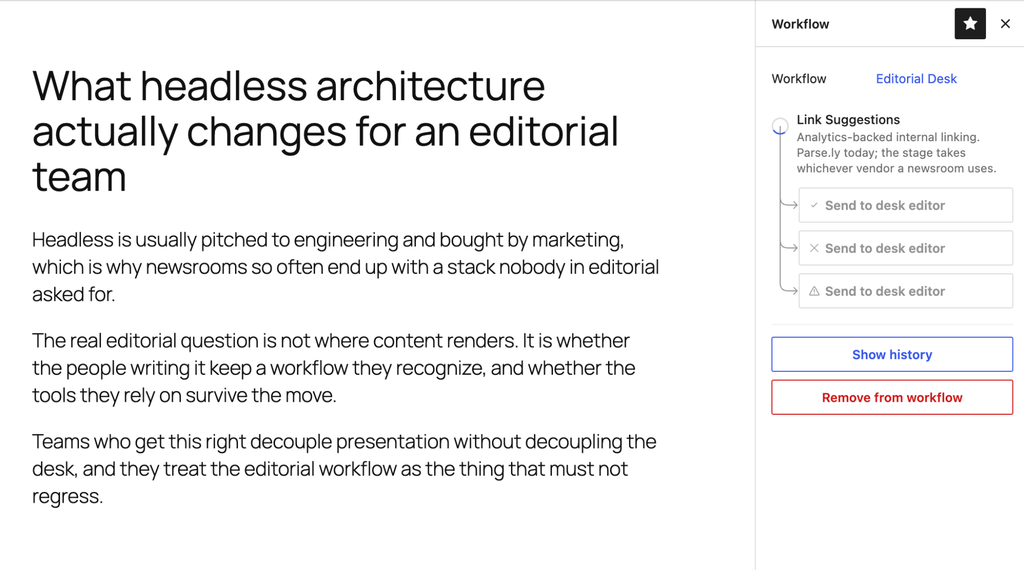
A few states are worth knowing:
- If the agent fails and the sequence has no failure route configured, the panel offers to move the post back to its previous stage.
- If the agent’s outcome would publish the post or make it private, and the sequence doesn’t allow agent publishing, the post stops at its current stage with a message naming the outcome and the blocked destination, and pointing at the “Let AI stages publish” setting to change it.
- If the agent’s move would only be blocked by a soft (warning-level) tool check, the panel surfaces that to a human to decide rather than deciding on the post’s behalf.
- If the agent rewrote the post’s content at the same time the user made edits, those edits would be lost when the agent continues. The user is presented with a choice on what to do.
Tools
A tool is a WordPress Ability — a capability with a defined input, a defined output, and permission and execution callbacks — registered with VIP Workflows so it can run inside a transition or on demand from the command palette. A tool falls into one of two shapes:
- Check tools validate content and return a pass/warning/fail result with a list of issues, each carrying its own severity.
- Helper tools generate or transform content — an excerpt, a suggested edit — and present their output through an “apply” flow rather than an inline result.
An administrator configures every tool from Workflows → Tools. Every tool run is recorded in the audit log.
A tool can also declare configurable settings (a house style, a keyword list, a minimum score) using the same settings format shared across tools, agents, and notification channels. A setting declared this way must also be declared as part of the tool’s input, or the tool’s run is rejected. Anyone building a tool with configurable settings must declare each setting in both places.
The Tools admin page includes an “Add custom tools” button. This button explains how to register a tool and includes a ready-made skill to help you develop your own tools with AI.
Agents
Agents use AI to automate your workflow. They use the API keys you have configured in Settings → Connectors. If you don’t have any API keys configured, agents will show an error when you run them. VIP Workflows has two kinds of agents.
Stage agents
A stage agent is a tool that a sequence can assign to own a stage entirely, chosen from that stage’s settings panel in the sequence editor.
When a post enters an AI-owned stage, VIP Workflows schedules the agent to run in the background. When it finishes, it maps its result to exactly one of three outcomes — pass, fail, or error — which determine what happens next, based on the sequence configuration.
An agent may only report pass or fail; anything else — an unhandled error, or a result VIP Workflows doesn’t recognize — is always treated as an error. If the stage has no error route configured, the post stays where it is, and the user is offered a way to send it back to the previous stage instead.
Two guardrails apply to every stage agent, regardless of what it does:
- An agent cannot move a post into the publish or private region on its own unless the sequence explicitly allows agent publishing; even then, the account acting on the agent’s behalf must have the same capability a human would need to publish.
- A hard limit stops an agent from triggering another agent more than ten times in a row, to prevent a runaway agent-to-agent loop.
Building a stage agent means registering an ability whose output only ever reports pass or fail, and registering it as an agent so it’s selectable in the sequence editor. Post content passed to the agent is treated as lower-trust than the agent’s own instructions, since it’s author-controlled.
The Agents admin page includes an “Add custom agents” button. This button explains how to register an agent and includes a ready-made skill to help you develop your own agents with AI.
Research and ideation agents
Ideation is an experimental feature. Enable it to use research and ideation agents. These agents search for source material, background, or related coverage. These share the same registration mechanism as stage agents and appear alongside them on the Workflows → Agents screen, but return research material rather than a pass/fail verdict.
Discovery searches and AI-generated images are capped per hour to protect against runaway use — by default, 120 searches and 30 images per account, and 20 images per content project. Once a limit is reached, the request is refused with a message saying when to try again. An administrator can adjust these limits for their site.
Notifications
A notification is a message VIP Workflows can send when something happens in a workflow. Two channels are included: email (no configuration required) and Slack (one or more webhook destinations).
Notifications reach a channel two ways:
- Publish event. You can notify a channel on every publish event, regardless of sequence or transition notifications. This is configured from Workflows → Notifications screen’s routing settings.
- Per-transition notifications. Any transition in a sequence can name one or more channels to notify when that transition fires, set in the transition’s settings panel in the sequence editor.
Adding a custom channel means registering a class that can report whether it’s configured correctly, send a notification, and test its own connection. Instructions for adding custom channels are on the Notifications admin screen.
My Dashboard

Workflows → My Dashboard is the landing page for anyone with edit access—clicking the top-level Workflows menu item takes you there directly. It’s a personal view of the posts you’re already involved with.
This DataViews-powered screen allows you to filter by workflow, stage, status, author, or assignee; sort any column; and group the whole list. Your filters, sort, visible columns, and grouping are remembered automatically between visits.
My Dashboard and My Queue only list posts you have permission to open.
Audit log
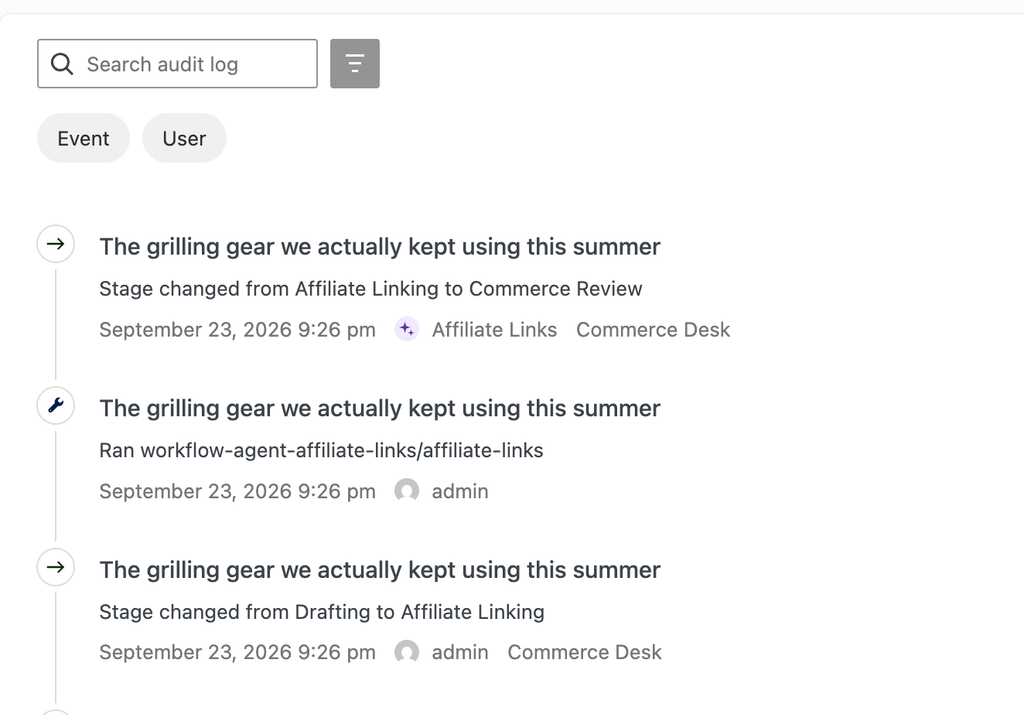
Workflows → Audit Log lists every workflow event on the site — stage changes, blocked transitions, tool runs and warnings, workflow assignment, and sequence configuration changes — as one filterable, searchable stream. You can filter by event type, user, or post. By default, only administrators see all activity; editors can access the audit log and see their activity. This can be customized.
Parse.ly integration
Sites already using the Parse.ly plugin unlock additional features.
- Smart linking, available as both an on-demand tool and a stage agent, suggests internal links using Parse.ly’s Suggestions API.
- Headline suggestions and scoring for a post’s headline.
- Compare to past performance, which scores a candidate headline or topic against how comparable past coverage performed.
Included tools
During beta, VIP Workflows ships with a handful of example tools and agents. These may not meet your specific needs, but are offered as examples of what’s possible. The final product may ship with all or none of these tools.
- SEO check: Scores a post from 0–100 against word count, meta description, title length, heading structure, and image alt-text coverage.
- Readability: Scores a post’s readability using the Flesch-Kincaid formula.
- Keyword check: Checks a post against a target keyword’s density, placement, and variant coverage.
- Copy editor: A stage agent that edits a post’s body for grammar, spelling, and style using a large language model, following a configurable house style. It saves any change it makes as its own attributed revision rather than overwriting silently.
- Tag sanity check: A stage agent that reviews a post’s assigned tags for fit and flags questionable ones for a human to confirm. It never edits the post itself, and it fails outright if the post has no tags assigned.
- Wikipedia research assistant: An ideation-time research agent that searches Wikipedia for background context and reference material while a story is still being scoped. It needs no credentials, since it calls Wikipedia’s public API.
- Checklist: A configurable check tool that turns an administrator-defined list of items into a checklist on a transition, each item either blocking (hard) or advisory (soft), shown to the editor as checkboxes in the sidebar.
We’ve created a repository of additional sample extensions you can use as a template.
Customizing VIP Workflows
VIP Workflows is a framework. Out of the box, it ships the sequence engine and the tools, agents, and notifications building blocks. To make it work for your team, add the tools, agents, and notification channels that match your editorial standards.
Every extension point is documented in the plugin’s own repository, Automattic/vip-workflows:
- Extending VIP Workflows — start here. A map of what to register for each kind of extension: a research agent, a stage agent, a check or helper tool, a notification channel, a discovery provider, or a plain admin page.
- Skill docs, under vip-workflows/skills/ in the repo — short, task-focused guides for building a tool, an agent, or a notification channel, written to be handed directly to an AI coding assistant. These are the same skills linked from the “Add custom tools” and “Add custom agents” buttons on their respective admin pages.
- Developer reference — architecture, database schema, data flows, and every extension point in depth, for anyone going beyond a single tool or agent.
A custom tool, agent, or channel ships as its own ordinary WordPress plugin, installed and activated independently of VIP Workflows itself.
Experimental features
VIP Workflows gates a small number of features behind experiments, disabled by default. These features are being considered and may not make it into the final product.
Ideation
Ideation adds research, discovery, and source management for story ideation. Enabling it also activates the Ideation → Editorial phase sequence and turns on the research and discovery agents.
Kanban
Kanban visualizes posts as cards in columns grouped by workflow stage, one sequence at a time — switch sequences from a dropdown, or choose “No Sequence” to see posts outside any sequence grouped by their core WordPress status instead. Each card shows its author, assignee, due date, and time in its current stage. Dragging a card to another column fires a real transition, the same one a human would trigger from the block editor’s Workflow panel, including any tool warnings that the transition requires acknowledging.
Calendar
Calendar visualizes posts by publish or scheduled date, in day, week, month, and year views, across every post type in use by an active sequence rather than one sequence at a time. Each event carries a workflow badge when its post is on an active sequence, or a core status icon otherwise. Dragging an event to a new date reschedules the post directly through WordPress’s own post API rather than through a workflow transition, so it updates the post’s date and status without running any stage-agent logic a sequence transition would otherwise trigger.
My Queue
My Queue adds a tab to My Dashboard listing the posts you can act on next: any post sitting in a stage marked to appear in the queue, where you have a role-based right to move it forward, and you’re not its own author (unless self-review is allowed on the site). Once a post is assigned to someone, it only shows up in that person’s queue. Any transition marked “Show as quick action in Queue” in the sequence editor renders as a one-click button right in the row, so acting on a post doesn’t require opening it first.
Last updated: November 12, 2026