Enable HTTP request Log Shipping
When enabled, HTTP Request Log Shipping ships copies of an application’s HTTP request logs at 5-minute intervals to a configured cloud storage bucket (e.g. Amazon Web Services (AWS) S3 buckets, Google Cloud Storage buckets, Azure Blob Storage).
Files from more than one of an organization’s applications and environments can be shipped to a single bucket.
Prerequisites
- To enable HTTP request Log Shipping, a user must have at minimum an App admin role for that application or an Org admin role.
- Review the cloud storage bucket requirements before enabling this feature.
Configure HTTP request Log Shipping
In the VIP Dashboard for an application:
- Select an environment from the environment dropdown located at the upper left of the VIP Dashboard.
- Select “Logs” from the sidebar navigation at the left of the screen.
- Select “Log Shipping” from the submenu.
Step 1 of 3: Select Provider
- Select a cloud storage provider from the dropdown options (e.g. “AWS S3”, “Google Cloud Storage”, or “Azure Blob Storage”).
- Select the button labeled “Continue“.
Prerequisites
To complete the configuration of an AWS S3 bucket, a user must have sufficient access permissions on AWS to:
- Modify the AWS bucket policy of the AWS S3 bucket.
- Create an AWS CloudFormation stack in the AWS account.
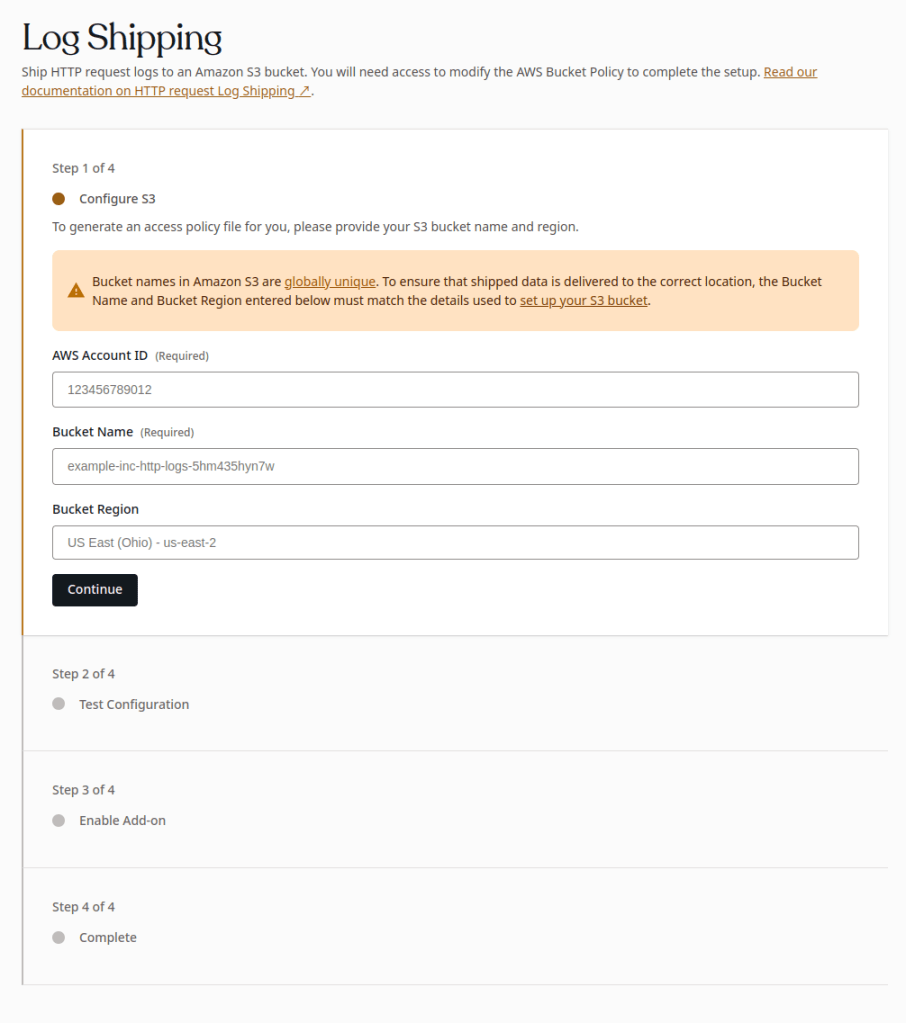
Step 2 of 3: Configure
- Configure the AWS S3 bucket requires by adding valid entries for the required fields: “AWS Account ID” (How to find your AWS Account ID), “Bucket Name”, and “Bucket Region”. Optionally enter values for any other fields that are relevant to the S3 bucket.
- Select the button labeled “Continue“.
Step 3 of 3: Test Configuration
Based on the values entered in “Step 2 of 3: Configure”, a CloudFormation Template will populate the field labeled “Generated CloudFormation Template“. To continue the process of enabling Log Shipping:
- Select the button labeled “Download Template” to download the CloudFormation Template JSON file.
- Follow the instructions for Creating a stack on the AWS CloudFormation console to use the CloudFormation Template JSON file to create a stack in AWS CloudFormation.
- Select the button labeled “Run Test“ to test the configuration of the S3 bucket. A test file named
vip-go-test-file.txtwill be uploaded to the S3 bucket as part of the verification process. This file will always be present in a site’s configured S3 bucket and path, alongside the dated folders that contain the logs themselves.
A test file named vip-go-test-file.txt will be uploaded to the cloud storage bucket as part of the verification process. This file will always be present in an environment’s configured cloud storage bucket and path, alongside the dated folders that contain the logs themselves.
Prerequisites
To complete the configuration of a Google Cloud bucket, a user must have a Google Cloud Platform Service account with sufficient permissions to:
- Create and configure a Google Cloud bucket.
- Generate and download an authentication key as a JSON file.
Step 2 of 3: Configure
- Configure the Google Cloud bucket by adding valid entries for the required fields: “GCP Bucket Name” and “GCP Credentials JSON“. Optionally enter a value for the “GCP Prefix” field if it is relevant to the Google Cloud bucket.
- Select the button labeled “Continue“.
Step 3 of 3: Test Configuration
Select the button labeled “Run Test“ to test the configuration of the cloud storage bucket.
A test file named vip-go-test-file.txt will be uploaded to the cloud storage bucket as part of the verification process. This file will always be present in an environment’s configured cloud storage bucket and path, alongside the dated folders that contain the logs themselves.
Prerequisites
To complete the configuration of an Azure Blob Cloud bucket, a user must have at least a Storage Blob Data Contributor role to have sufficient permissions to:
- Create and configure a storage account and a container.
- Create an SAS token.
Step 2 of 3: Configure
- Configure the Azure Blob bucket by adding valid entries for the required fields: “Azure Storage Account Name”, “Azure Container Name“, and “Azure SAS Token“. Optionally enter a value for the “Azure Prefix” field if it is relevant to the Azure Blob bucket.
- Select the button labeled “Continue“.
Step 3 of 3: Test Configuration
Select the button labeled “Run Test“ to test the configuration of the cloud storage bucket.
A test file named vip-go-test-file.txt will be uploaded to the cloud storage bucket as part of the verification process. This file will always be present in an environment’s configured cloud storage bucket and path, alongside the dated folders that contain the logs themselves.
Enable HTTP request Log Shipping
After completing the required configuration steps, the HTTP request Log Shipping feature must be enabled in order for file shipping to the configured cloud storage bucket to begin.
In the upper area of the Log Shipping panel:
- Select the button labeled “Enable“.

Disable HTTP request Log Shipping
- Navigate to the VIP Dashboard for an application.
- Select an environment from the environment dropdown located at the upper left of the VIP Dashboard.
- Select “Logs” from the sidebar navigation at the left of the screen.
- Select “Log Shipping” from the submenu.
- Select the button labeled “Disable” in the upper area of the Log Shipping panel.

Service Status
In the upper area of the “Log Shipping” panel, the box titled “Service Status” indicates if the Log Shipping feature for the environment is currently “Awaiting Configuration” or “Enabled”.
If needed, the configuration values for the Log Shipping feature can be updated. Select the button labeled “Disable“, then update the field values as needed starting with Step 1 of 3.

Restrict access by IP range
To restrict access to an AWS S3 bucket via IP range, ensure the bucket access policy accounts for the VIP Platform’s dynamic IP range. A system to auto-update the access policy will need to be implemented, as the IP ranges are subject to change.
Last updated: October 27, 2025