Custom error pages
When a request is unable to be processed by an application’s origin server, a server error response is returned by the nearest edge cache server (e.g., 502 Bad Gateway, 503 Service Unavailable). The user is typically served an error page styled by a default template that is supplied by the WordPress VIP Platform.
Customers have the option to customize the contents of the HTML file that is used to render the error page per-environment. Customizations can be made either in the VIP Dashboard or in the application codebase. Customizing an error page makes it possible to maintain brand consistency and provide a better user experience during downtime or maintenance periods.
The customized version of an error page is deployed to, stored on, and served from all of VIP’s global edge cache servers. Updates that are made to the settings of a custom error page may take up to 10 minutes to be saved across all edge servers.
Limitations
- Error page configuration is per-environment.
- The maximum total size of a customized error page file is 150 KB.
- All customizations made to an error page file—including CSS and Javascript—should be coded inline. It is possible to load assets from an external application or a CDN if absolutely necessary, but it is not recommended.
- Images must be Base64 encoded inline in the HTML markup.
Access
Prerequisite
- To view or edit an application’s error page configurations in the VIP Dashboard a user must have at minimum an App write role for that application or an Org member role.
- To edit an error page file in an application’s wpcomvip GitHub repository, a user’s GitHub account must have at minimum access with Write permissions.
To access the Error Page panel in the VIP Dashboard:
- Navigate to the VIP Dashboard for an application.
- Select an environment from the dropdown located at the upper left of the dashboard.
- Select “Code” from the sidebar navigation at the left of the screen.
- Select “Error Page” from the navigation submenu.
Three setting options are available for error page customization.

Preview the active error page
The currently active error page option is labeled “Active Option” located in the bottom right of the Error Page panel. The Error Page panel of the VIP Dashboard provides a preview of the currently active error page.
VIP Error Page (default)
All environments are initially configured to load the default error page provided by the WordPress VIP Platform. The default error page format is:
- Responsive and mobile-friendly
- Accessible (meets WCAG guidelines)
- Supports both light and dark color modes
- Professionally designed with clean typography
- Automatically maintained and updated by VIP
Enable
To enable the default error page format for an environment:
- Select the checkbox located in the upper right of the configuration box labeled “Use VIP Default“.
- Select the button labeled “Apply Changes“.
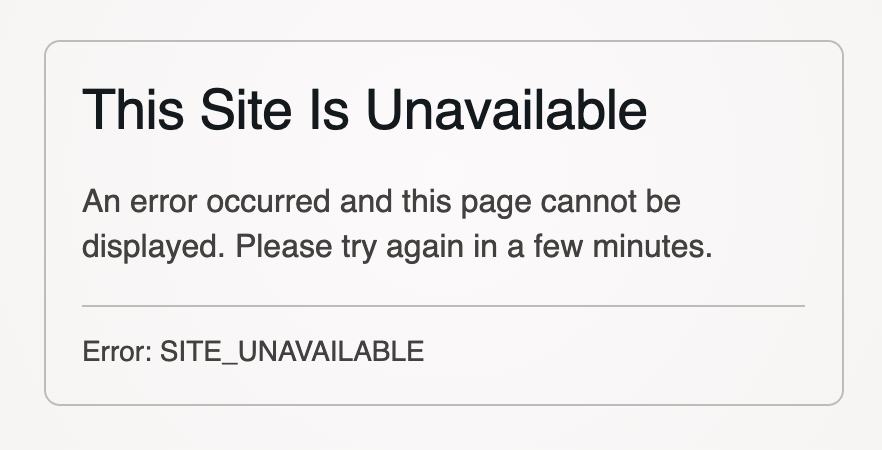
Custom HTML Page
As an alternative to managing an error page file in a code repository, an HTML editor that is built into the VIP Dashboard can be used to customize the file instead.
The code supplied for the custom error page can be used as a starting template for customizing an error page file in a repository. Add the template code to the user’s clipboard by selecting the button labeled “Copy Code” located at the upper right of the field labeled “HTML Content“.
Enable
To edit a custom error page in the VIP Dashboard’s HTML editor and enable it for an environment:
- Select the checkbox located in the upper right of the configuration box labeled “Custom HTML Page“.
- Edit the content and layout of the error page in the editable text field labeled “HTML Content“.
- The “HTML Content” field is pre-populated with either the HTML of the default error page, or the most recently updated content of the error page that was saved in the HTML editor.
- A frontend view of the rendered HTML is updated in real time in the field labeled “Preview“.
- Test the error page customizations in light and dark mode by toggling the button labeled “Dark Mode” located in the upper right of the panel.
- To save the updates made to the HTML, select the button labeled “Apply Changes“.
Load From the Repository
A custom error page file can be added to the root of an application’s code repository for at the file path .wpvip/errors/site-unavailable.html. This is the only valid file path for a custom error page file in a repository.
For the custom error page file to be activated for an environment:
- The file must be deployed to the target environment.
- The option labeled “Load From the Repository” in the Error Page panel must be enabled in the VIP Dashboard for the environment.
If the option labeled “Load From the Repository” is enabled but no file exists at the required path, the default error page provided by the VIP Platform will be used instead.
Only one custom error page file can be used per environment. As a result, all sites on an environment to which that the file is deployed (i.e. WordPress multisite) will share the same custom error page.
Enable
To enable a custom error page file that has been deployed to an environment at a valid file path:
- Select the checkbox located in the upper right of the configuration box labeled “Load From the Repository.
- Select the button labeled “Apply Changes“.
Note
By default, all wpcomvip GitHub repositories for WordPress applications created after 24 July 2025 include an inactive error page template at the directory path: /.wpvip/errors/site-unavailable-sample.html.
For the file to be recognized by the edge cache servers, update the name of the file by removing the appended -sample value then deploy the file to the target environment.
Custom error pages for Node.js
A response body for a 502 or 503 status code returned by a Node.js application will be overridden by the VIP default error page or by a custom error page if it is enabled for the environment. This override can be bypassed by adding an x-vip-reached-origin: true HTTP response header to the application’s 502 or 503 status responses.
Considerations
A custom error page provides an opportunity to extend a site’s branding, but it is important that the rendered page performs well, communicates clearly, and meets accessibility standards.
Design
- Create a simple and clean design that has visual distinction from regular site pages.
- Choose a font and color contrast that is easy to read.
- Use custom inline CSS to add brand elements ( e.g., logo, colors, fonts) and elements of the site’s theme design.
Function
- Add a clear and user-friendly error message.
- Include contact information or links to support resources.
- Ensure that the error page is mobile-responsive.
- Use CSS custom properties and media queries to support both light and dark modes.
Accessibility
- Use semantic HTML elements (e.g.,
<main>,<section>,<h1>). - Nest header tags in hierarchic order.
- Ensure that color contrast is 4.5:1 at minimum.
- Provide alternative text for images.
- Test the rendered error page with a screen reader.
Troubleshooting
If an error page is not displaying as expected:
- Validate the rendered HTML using an online validation tool.
- Check for JavaScript errors in the browser console.
- Ensure that all resources (e.g., CSS, images) are inline. Externally linked assets might not perform in a dependable manner.
- Test for browser incompatibility by loading the error page in multiple browsers.
A custom error page file will not work as expected if it exceeds the 150 KB size limit. To reduce the size of the file:
- Optimize all images and use inline SVGs whenever possible.
- Minify all CSS and JavaScript.
- Remove all unnecessary whitespace and comments.
If the option “Load From the Repository” is selected but no file in the deployed code exists at the path /.wpvip/errors/site-unavailable.html, the default error page will load instead.
Last updated: August 21, 2025